
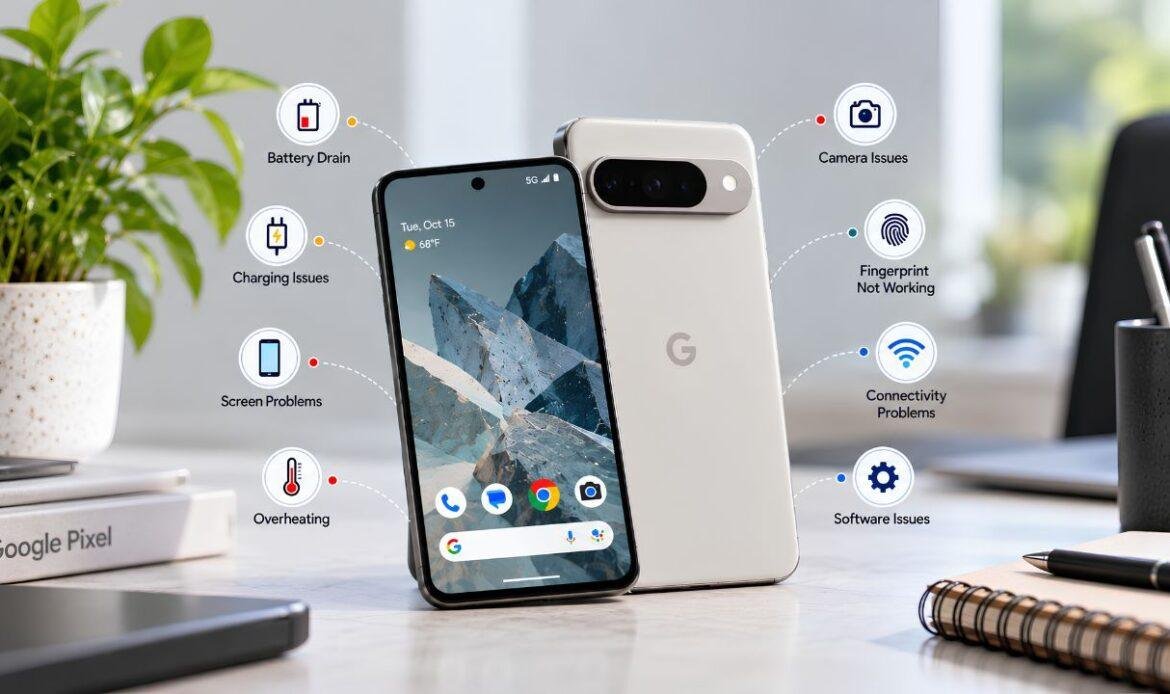
What Are Some Common Problems With Google Pixel Phones?
Google Pixel phones are known for clean software, a great camera, and years of updates. Still, no phone is perfect. Most owners face at least one fault over the life of the device, and nearly all google pixel problems fall into two types. The first type is hardware issues, where a physical part such as the battery, screen, or charging port wears out or gets damaged. The second type is software issues, where an app, a setting, or an update causes the phone to misbehave. Knowing the type matters, because a worn part needs a proper Google Pixel repair while a software fault can often be cleared with a few settings. This guide covers the most common issues with Google Pixel phones, grouped by type, so you know what you are dealing with.
Hardware Problems With Google Pixel Phones
Hardware faults come from wear, drops, water, or dust. They do not go away with a restart.
1. Battery Draining Too Fast
This is the number one complaint from Pixel users. High brightness, background apps, and location services all eat power. You can turn on Adaptive Battery, lower brightness, and check the battery usage screen for any app that is using too much. If the phone is more than two years old and still drains fast, the battery itself has worn down. Do not try to open the phone and swap it yourself. Pixel batteries are glued in place, and forcing one out can puncture it or crack the screen. A trained team can do a safe battery replacement with the right tools and a tested part.
2. Charging Problems
Slow charging, charging that starts and stops, or no charging at all are common issues with Google Pixel phones. Start with the basics. Try a different cable and adapter, and use one rated for fast charging, such as Google’s own 30W adapter. Then shine a light into the USB-C port to check for pocket lint. A soft, dry brush can clear loose lint safely. Never poke a pin, needle, or metal tool into the port. The contacts inside are tiny, and one bent pin means a dead port. If the port feels loose or only charges at one angle, leave it to a technician. A proper charging port repair replaces the part without risk to the board behind it.
3. Screen Not Responding or Flickering
Touch problems block everything else, so they feel urgent. Signs of a screen fault include:
- Taps and swipes that register late or not at all
- Flickering, green tint, or coloured lines on the display
- A screen that stays black even though the phone rings or vibrates
- Ghost touches where apps open on their own
Remove any thick screen protector and restart first. If the lines or flicker continue, the display panel or its cable is at fault. This is not a home job. The panel is bonded to the frame, and the fingerprint reader sits under the glass. A trained technician handles a screen replacement and recalibrates the reader afterwards, which is a step most DIY guides skip. Owners of a Pixel 9 Pro with a vertical line should also check Google’s extended repair program, since eligible units may be covered at no cost.
4. Phone Getting Too Hot
Pixels warm up during gaming or long camera sessions. That is normal. A phone that is hot while idle, or shows a heat warning, is not. Common causes are charging while using heavy apps, a cheap charger that pushes uneven power, or a swollen battery. Close unused apps and take the case off while charging. If the heat continues, stop using the phone and have it checked. A swollen battery can push the screen out of its frame, and pressing on it makes things worse. An expert team can test the battery and charger circuit and find the real cause before any damage spreads.
5. Pixel Will Not Turn On
Many people search for “why is my Google phone not working” when the screen stays black. Do not panic. The most common cause is a fully drained battery. Google’s own advice is to:
- Plug in with a known working cable and charger and wait at least ten minutes
- Hold the Power button for about 30 seconds to force a restart
- Call the phone from another device to see if it rings with a dark screen
If it rings but shows nothing, the screen has failed rather than the phone. If it does nothing after an hour on the charger, the battery or charging circuit needs testing. Do not open the phone or try random button tricks from forums. A repair specialist can test each part and tell you exactly what failed.
Software Problems With Google Pixel Phones
Software faults come from apps, settings, or updates. They often clear without any repair.
6. Camera App Crashing or Blurry Photos
The app may crash on launch, open slowly, or produce soft photos. In most cases the cause is a full app cache or an outdated version. Open the Camera app info in Settings and clear the cache. Then check the Play Store for updates. If photos stay blurry, wipe the lens with a soft cloth. If the problem survives all of that, the camera module may be loose or damaged. Do not try to reseat it yourself. The module is tiny and easy to tear, and a technician can test it safely.
7. Fingerprint Sensor Not Working
Pixel 6 and newer models use an under-display fingerprint reader, which is more sensitive than the old rear sensor. Dry fingers, a dirty screen, or a thick protector can all cause failed reads. Turn on Screen Protector Mode under Display settings if you use one. Register the same finger twice from different angles. If the reader stops working right after a screen repair, it was likely not recalibrated. Do not factory reset the phone hoping to fix it. Take it back to a trained team who can run the calibration tool and check the sensor connection.
8. Wi-Fi, Bluetooth, or Signal Dropping
Connection issues with Google Pixel phones show up as Wi-Fi that keeps dropping, earbuds that will not pair, or calls that cut out in areas with normal coverage. Toggle Airplane mode on and off. Forget and rejoin the network. Reset network settings if that fails. For weak mobile signal, reseat the SIM or switch to an eSIM if your carrier offers one. If nothing helps after a software update, the antenna or modem may be faulty. That is a board-level part. Leave it to a specialist rather than opening the phone to check.
9. Random Restarts and Freezing
A Pixel that reboots by itself or freezes several times a day usually has a software cause. An app that is not built for the current Android version is the usual suspect. Boot into Safe Mode by holding the power button, then long-pressing Power off. If the phone runs fine there, remove recent installs one at a time. If it still restarts in Safe Mode, the fault is deeper. Do not flash custom firmware or follow unverified fixes from forums, as a bad flash can brick the phone. An expert team can check the storage and board and recover your data first.
How Does Phone Age Affect Google Pixel Performance?
Many problems with Google Pixel phones get blamed on software when the real cause is age. Batteries lose capacity after a few hundred charge cycles. Ports wear with daily use. Screen adhesive breaks down over time. Knowing how long Google Pixel phones last helps you set fair expectations. A three-year-old Pixel with a tired battery is not broken. It simply needs one part replaced to run like new again.
Conclusion
Most common problems with Google Pixel phones are either hardware or software. Software faults such as camera crashes, connection drops, and random restarts usually clear with a restart, a cache reset, or an update. Hardware faults such as a worn battery, a loose port, or a flickering screen only get worse the longer they are ignored. Try the simple settings first. If the fault survives them, do not go further on your own, because a trusted phone repair shop has the training, tools, and tested parts to troubleshoot without harming the device. Keep the software updated, charge with a good adapter, and deal with small faults early. With that habit, a Pixel can serve you well for years.
Frequently Asked Questions
Q1. What are the most common Google Pixel problems?
Common Google Pixel problems include battery drain, charging issues, overheating, connectivity problems, app crashes, slow performance, and screen damage. Some issues are software-related, while others may result from damaged or worn hardware components.
Q2. Why is my Google Pixel battery draining so fast?
Fast battery drain can be caused by background apps, high screen brightness, location services, heavy usage, or outdated software.
If the battery continues to drain quickly after troubleshooting, it may have lost capacity due to normal wear.
Q3. What should I do if my Google Pixel isn’t charging?
Try a different compatible USB-C cable, charger, and power outlet, and check the charging port for dust or debris. If the phone still will not charge or the connection feels loose, the cable, port, battery, or charging circuit may need inspection.
Q4. Why does my Google Pixel keep overheating?
Heavy apps, prolonged use, software issues, hot environments, and battery problems can cause a Pixel to become unusually warm.
Closing demanding apps, installing updates, and allowing the phone to cool can help identify and reduce the issue.
Q5. Is it safe to repair a Google Pixel yourself?
Basic software troubleshooting and routine maintenance are generally safe when following proper instructions. Battery, screen, and charging-port repairs are more complex and may damage internal components or affect water resistance when done incorrectly.