Is your Samsung phone freezing, overheating or refusing to charge? Is the screen showing lines, or has the phone gone completely black? If you answered yes to any of these, you’re not alone. These are some of the most common Samsung phone problems, and they affect Galaxy S, A, Note and foldable models alike. Some can be fixed with a quick restart or a change in settings. Others are warning signs that need attention right away. In this guide, we explain the top 10 issues one by one, what usually causes them, and the exact steps you can follow to fix them. We’ll also show you the signs that a problem is beyond a home fix, so you know when it’s time for professional Samsung repair.
1. Swollen Samsung Battery
Does the back of your phone look like it’s lifting, or does the screen seem pushed out? This is the most serious problem on the list, so don’t ignore it. Phone batteries can swell as they get older, or after too much heat or a hard drop. When that happens, the battery pushes against the back panel or screen. You might notice a small gap at the edge of the phone, a screen that looks raised, or a phone that wobbles when you put it on a table.
If you see any of these signs, do this right away:
- Unplug the charger and stop charging the phone.
- Take off the case gently. Don’t squeeze the phone.
- Put it on a hard surface that won’t burn, like a tile floor or a ceramic plate, away from heat.
- Leave it off the charger and get it checked the same day.
Don’t press the bulge to flatten it, and don’t keep the phone in your pocket. Never try to open it yourself. A damaged battery can catch fire. If you see smoke, hear a hissing sound or smell something sweet or chemical, move away from the phone.
No setting or app can fix a swollen battery. It has to come out, and that needs a safe battery replacement done by someone with the right tools.
2. Samsung Water Damage
Did your phone fall in the sink, the pool or a puddle? Many Galaxy phones are water-resistant, but that doesn’t mean they’re waterproof. The seals that keep water out get weaker over time, especially after drops or earlier repairs. Salt water, pool water and drinks like coffee or juice cause the most harm, because they leave behind residue that slowly eats away at the parts inside. The tricky part is that the phone may seem fine at first, then start acting up a few days later.
If your phone gets wet, follow these steps:
- Turn the phone off right away, even if it still works.
- Don’t charge it with a cable or a wireless charger.
- Dry the outside with a soft cloth, then remove the case and SIM tray.
- Hold the phone with the charging port facing down and shake it gently to get loose water out.
- Leave it turned off in a dry place at room temperature, with some airflow around it.
Skip the bowl of rice. It doesn’t pull water out from inside the phone, and the rice dust can get stuck in the ports. A hair dryer is a bad idea too, because the heat can damage the screen and battery.
If the phone took more than a small splash of clean water, don’t wait for problems to show up. Damage inside keeps spreading for days, and quick water damage repair gives you the best chance of saving both the phone and your data.
3. Samsung Phone Overheating
Does your phone feel hot even when you’re not using it? It’s normal for a phone to feel warm when you play games, take long video calls or use the camera for a while. It’s not normal if it gets hot while you’re doing nothing. When a Galaxy gets too hot, it may show a warning, dim the screen, close the camera or stop charging until it cools down.
The usual reasons are heavy apps, using the phone while it charges, leaving it in the sun, an app running in the background, a cheap charger or an old battery.
Here’s how to cool it down and find the cause:
- Unplug the charger and close all your apps.
- Take off the case and move the phone out of the sun or a hot car.
- Let it cool down on its own. Don’t put it in the fridge or freezer, because that can cause moisture inside.
- Once it’s cool, go to Settings, then Battery, and see which apps are using the most power. If an app you hardly use is near the top, update it or delete it.
- Check for a software update under Settings, then Software update.
- Use the charger and cable that came with the phone, or a certified one.
If the phone gets hot while it’s just sitting there, heats up every time you charge it, or always feels hot in one spot, the battery or charging part may be failing. Check it for swelling and treat it as urgent.
4. Samsung Phone Not Turning On
Pressing the Side key and nothing happens? A phone that won’t turn on isn’t always dead. Very often the battery is just fully drained, or the phone has frozen. Here’s a useful test: if the phone rings or vibrates but the screen stays black, the phone is working and only the screen has a problem. If nothing happens at all, the issue could be the battery, the charging part or the main board.
Try these steps:
- Plug the phone into a charger and cable that you know work. Leave it for at least 30 minutes.
- Keep it plugged in and force restart it by holding the Side key and Volume Down for more than seven seconds.
- Call your phone from another phone. If it rings or vibrates, the screen is the problem.
- If the phone is on but the screen is black, connect it to a computer. If the computer can see it, back up your files.
If the phone still shows no sign of life after charging and restarting, it’s a hardware problem. A board-level diagnosis can find out which part failed and whether your data can be recovered.
5. Samsung Phone Not Charging
Plugged in your phone and the battery still isn’t going up? Charging problems are very common. The phone may charge slowly, stop and start, or only charge when you hold the cable at a certain angle. In many cases, the cause is something small, like a worn-out cable or pocket lint stuck in the charging port. If your Galaxy finds water in the port, it shows a “Moisture detected” message and stops wired charging to protect the phone.
Here’s what to try:
- Use a different cable and charger that you know work. Cables wear out much faster than ports.
- Restart the phone and plug it in again.
- Shine a light into the charging port. If you see lint or dust, loosen it gently with a soft, dry brush.
- If you see the moisture message, unplug the cable, shake the phone gently with the port facing down and let it dry. Samsung says to allow about one to two hours.
- If your phone supports wireless charging, try it. Water in the port doesn’t affect wireless charging, so it’s a good backup. Just keep in mind that it’s slower and won’t fix a damaged port.
Never put a pin, needle or anything metal into the port. The small pins inside bend very easily.
If a new cable doesn’t help, the cable feels loose in the port, or the moisture message keeps coming back on a dry phone, the port is probably worn out or damaged. In that case, you’ll need a charging port repair.
6. Samsung Screen Flickering, Lines or Unresponsive Touch
Seeing lines, black spots or a screen that won’t respond to your touch? Samsung phones use AMOLED screens. In these screens, the glass, the touch layer and the display are joined together as one part. A drop or too much pressure can damage this part. You might see green or pink lines, black spots, flickering, areas that don’t respond to touch, or apps that open by themselves. Sometimes, though, the cause is just a small software glitch or a screen protector that has lifted.
Try these fixes first:
- Restart the phone. Small glitches often go away after a restart.
- Take off the screen protector and the case, then test the touch again.
- Wipe the screen with a dry microfibre cloth. Water drops and greasy marks can cause false touches.
- Open the Samsung Members app, go to Support, then Phone diagnostics, and run the screen and touch tests.
- If you use a screen protector, turn on Touch sensitivity under Settings, then Display.
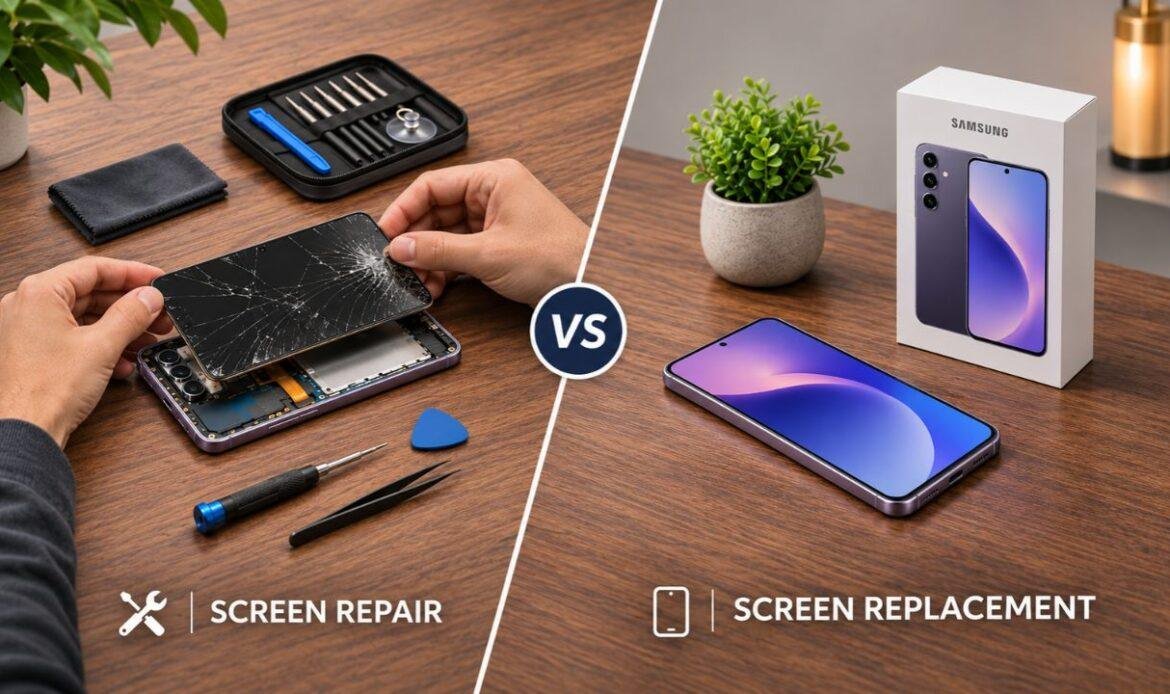
If the lines or spots are still there after a restart, the screen itself is damaged. Black spots on AMOLED screens usually spread over time, so it’s better not to wait. Since the layers are joined together, the whole panel needs a proper screen replacement, and the fingerprint sensor should be tested afterward.
7. Samsung Phone Freezing, Lagging or Restarting
Is your phone getting stuck, lagging or restarting by itself? When a Galaxy freezes, slows down or restarts on its own, the cause is usually software. A bad app, a phone that’s almost full, or an update that didn’t install properly are the most common reasons. On older phones, a weak battery or worn-out storage can cause the same problems.
Work through these steps in order:
- Force restart the phone using the Side key and Volume Down for more than seven seconds.
- Check your storage under Settings, then Battery and device care, then Storage. Try to keep at least 10 to 15 percent of it free.
- Install any waiting update under Settings, then Software update.
- Start the phone in Safe mode. Open the power menu, press and hold Power off until you see Safe mode, then tap it. Safe mode turns off all the apps you downloaded. If the phone works well in Safe mode, one of those apps is the problem. Restart normally and delete your newest apps one by one.
- If an older phone still feels slow, you can cut down the animations. Go to Settings, then About phone, then Software information, and tap Build number seven times. This opens Developer options. There, set Window animation scale, Transition animation scale and Animator duration scale to 0.5x.
- If nothing works, do a factory reset under Settings, then General management, then Reset.
A factory reset fixes almost any software problem and makes the phone feel new again. The downside is that it deletes everything on the phone, so back up first. It also won’t fix a hardware fault, and setting the phone up again takes some time.
You may see older guides telling you to “wipe the cache partition” from Recovery mode. Samsung has removed that option on phones with recent updates, so clearing the cache of a single app in Settings is the better choice now.
If the phone keeps restarting even in Safe mode, or gets stuck on the Samsung logo, stop restarting it over and over. A technician who offers data recovery can often save your photos and files before the phone is reset.
8. Samsung Battery Draining Fast
Is your battery empty long before the end of the day? A battery that drains too quickly is one of the most common complaints from Samsung users. A bright screen, apps running in the background and a weak mobile signal all use extra power. After a big software update, the phone may also drain faster for a day or two while it settles in. If none of these explain it, the battery may simply be old. Every battery loses some of its capacity with each charge.
These steps can help your battery last longer:
- Go to Settings, then Battery, and check which apps use the most power. Limit or put to sleep any app you rarely use.
- Turn on Adaptive brightness and set the screen to turn off after 30 seconds or one minute.
- Turn on Dark mode under Settings, then Display. On AMOLED screens, black areas use less power.
- Turn off Bluetooth, NFC, location and hotspot when you’re not using them.
- Use Power saving mode when the battery is low. It helps the battery last longer, but it limits some background activity, so a few notifications may come in late.
- Run the battery test in Samsung Members.
If Samsung Members says your battery is weak, or the phone turns off at 20 or 30 percent, settings won’t fix it. The battery has worn out and needs to be replaced.
9. Samsung Apps Crashing or Not Working
Do your apps keep closing, or has your camera stopped opening? App problems can show up in different ways. An app may close as soon as you open it, the camera may show a “Camera failed” message, Google Play may refuse to download apps, or notifications may stop coming in. Most of the time, the cause is old temporary files, an app that needs updating, low storage, two apps clashing, or a battery setting that has put the app to sleep.
Here’s how to fix it:
- Force stop the app. Go to Settings, then Apps, choose the app and tap Force stop.
- On the same screen, tap Storage, then Clear cache. This deletes temporary files but keeps your data.
- Update the app from Google Play or the Galaxy Store.
- If Google Play won’t download apps, clear the cache for both Google Play Store and Google Play services. Also check that you have free storage and that your date and time are set automatically.
- If the camera says “Camera failed,” try it in Safe mode. If it works there, another app, like a flashlight or scanner app, is getting in the way.
- If notifications aren’t showing up, make sure they’re turned on for that app, turn off Do Not Disturb, and check that the app isn’t set to sleep in your battery settings.
- If the app still won’t work, tap Clear data. This usually fixes stubborn problems, but it resets the app, so you’ll need to sign in again.
If the camera stays black in every app, even in Safe mode, or one lens stops working, or you see the same blurry spot in every photo after cleaning the lens, the camera itself is damaged. That calls for a proper camera repair.
10. Samsung Wi-Fi, Bluetooth or No Signal Problems
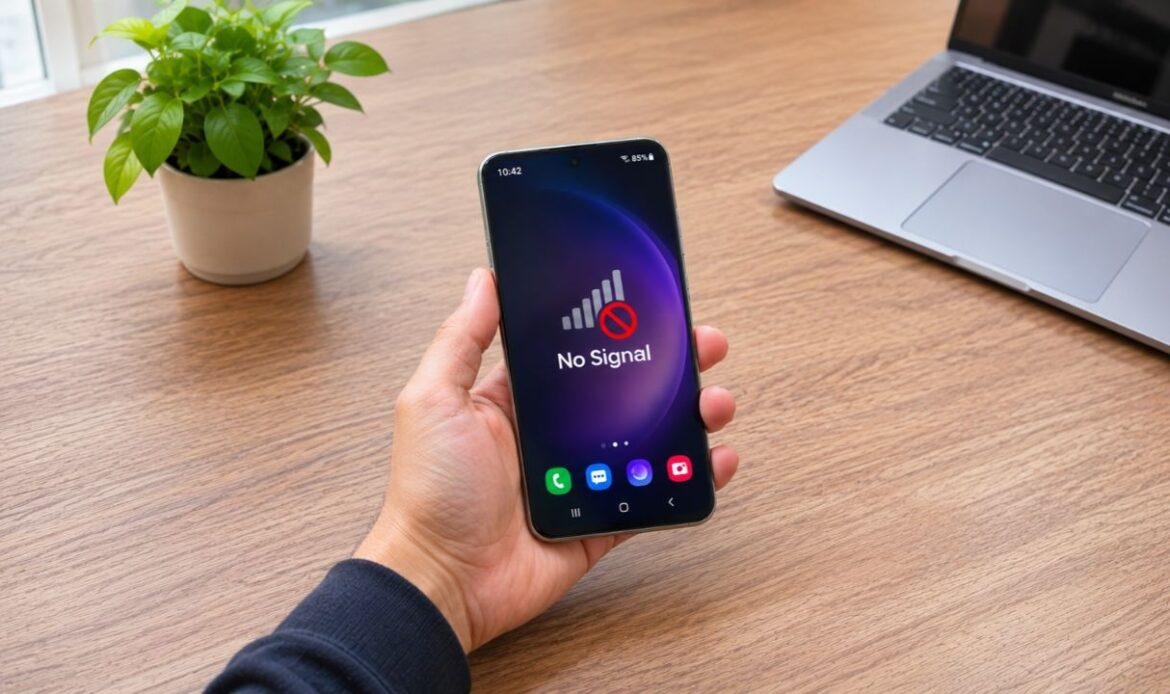
Is your Wi-Fi dropping or your phone showing “No service”? Connection problems are annoying, but they’re rarely serious. You might also notice earbuds that won’t connect, a “No SIM” message or texts that won’t send. Most of the time, the cause is a problem with your carrier, a SIM card that isn’t sitting properly, network settings that got mixed up, or your router.
Try these steps:
- Turn on Airplane mode, wait 30 seconds, then turn it off.
- Restart your phone. If the problem is Wi-Fi, restart your router too.
- Check if your carrier has an outage in your area.
- Turn the phone off, take out the SIM tray, check the SIM for dust or damage and put it back in. If you use an eSIM, check that it’s still active under Settings, then Connections, then SIM manager.
- Forget the Wi-Fi network and connect again. For Bluetooth, unpair the device and pair it again.
- Reset your network settings under Settings, then General management, then Reset. This clears out connection problems and doesn’t touch your photos or files. You’ll just need to enter your Wi-Fi passwords and pair your Bluetooth devices again.
If the signal problems started after a drop or after the phone got wet, or the phone can’t find a network with any SIM card, the antenna inside may be damaged.
Before You Book a Repair: Back Up and Run a Diagnostic
If a fix doesn’t work, take two quick steps before you hand your phone to anyone.
- Back up your data. If the phone still works, save your photos, contacts and files to Samsung Cloud, Google or Smart Switch. Some repairs can wipe the phone, and a backup is the only real guarantee.
- Run a full test in Samsung Members. Open the app, go to Support, tap Phone diagnostics and choose Test all. It checks the battery, screen, sensors, ports and cameras in a few minutes. If a part fails, you can tell the technician exactly what the test found, which saves time on the diagnosis.
Fixing It Yourself vs Professional Repair: Pros and Cons
Should you keep trying fixes or hand the phone to a technician? Trying a few fixes at home is a smart first step, but it can only go so far. Here’s a simple way to look at it.
Fixing it yourself has some clear benefits:
- It’s free, and most fixes take just a few minutes.
- It solves most software problems, like freezing, app crashes, battery drain and Wi-Fi drops.
- You don’t have to be without your phone.
It also has some limits:
- It can’t fix hardware problems like a swollen battery, a cracked screen or a worn charging port.
- Some steps, like a factory reset, delete your data.
- The wrong fix, like using heat, rice or opening the phone, can cause new damage.
- Waiting too long with water damage or a swollen battery makes the problem worse.
To tell the two apart, think about when the problem started. Software problems often appear after an update or a new app, and the steps above usually fix them. Hardware problems come with things you can see or feel, like cracks, swelling, heat in one spot, a loose port or a failed test in Samsung Members. If a problem keeps coming back after you’ve tried the fixes, it’s most likely hardware.
To learn more about repair options, warranty coverage and when it makes more sense to replace the phone, read our Samsung phone repair guide.
Conclusion
Most Samsung phone trouble can be fixed if you stay calm and take things one step at a time. A swollen battery, water damage or a phone that gets hot for no reason should be treated as urgent, so stop using it and get help. For everything else, start with a restart and a quick check in Samsung Members, then follow the steps for your problem. If the same issue keeps coming back or you can see physical damage, a trusted repair shop like iFix Technology can find the real cause and tell you honestly whether the phone is worth fixing.
Frequently Asked Questions
1. Which Samsung phone problems need attention right away?
A swollen battery, water damage and a phone that gets hot while you’re not using it. Turn the phone off, don’t charge it and get it checked the same day.
2. How do I force restart a frozen Samsung phone?
Press and hold the Side key and the Volume Down button together for more than seven seconds. The phone will restart without deleting anything.
3. Why does my Samsung say “moisture detected” when the port looks dry?
There may still be a little moisture or dust deep inside the port. Let the phone dry for a few hours. If the message keeps coming back, the port may be damaged.
4. Will Samsung phone troubleshooting delete my data?
Most steps won’t. Restarting, Safe mode, clearing an app’s cache and resetting network settings keep your files safe. A factory reset and clearing an app’s data will delete information, so always back up first.
5. Why does my Samsung phone keep overheating even when I’m not using it?
Background apps, software bugs, weak battery performance, or poor network signals can cause overheating. Check battery usage, close unnecessary apps, and install pending software updates.