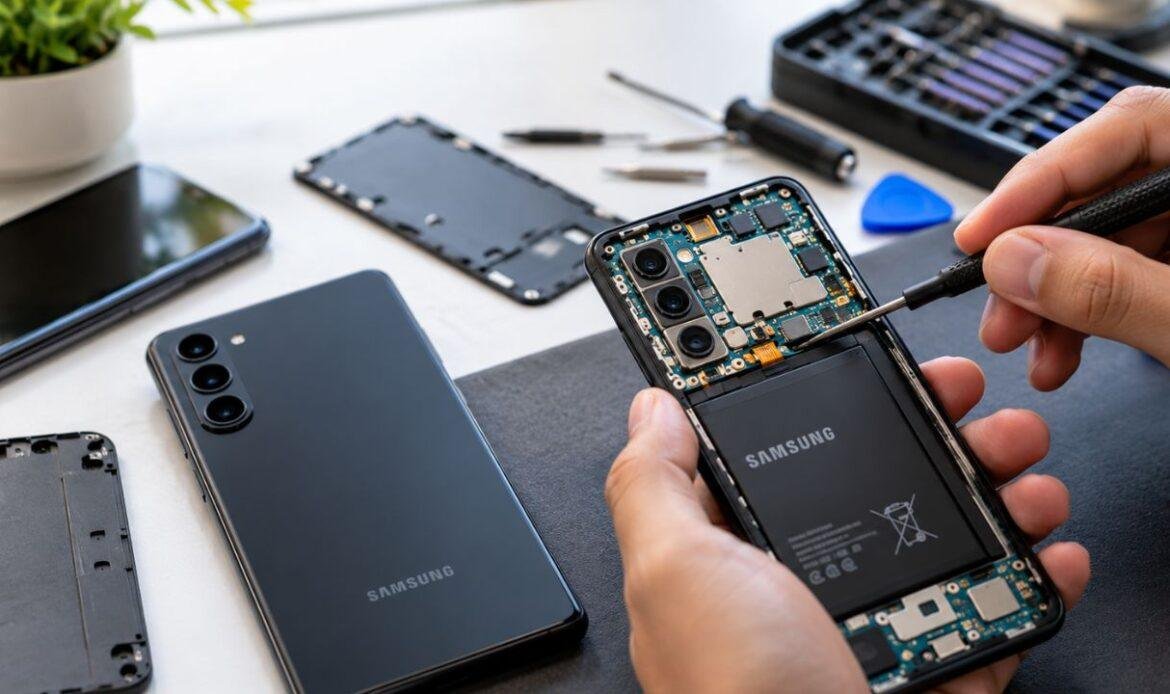
Your Samsung phone handles a lot every day: calls, photos, banking, navigation, and messages. Knowing how Samsung Phone Repair works before you need it can save you time, money, and stress. This guide covers the most common Samsung phone problems and what they usually mean, how warranty and coverage work, and how to choose the right repair service. Keep it handy, and you’ll always know your next step.
Common Problems and What They Mean
Below are the problems Galaxy owners report most often. Each one shows what you’ll notice, the likely cause, one quick check you can safely try, and when it’s time to visit a repair store.
Lines, Spots, Flickering or Unresponsive Touch on the Screen
What you notice: Green or pink lines, black spots, flickering, or areas of the screen that stop responding to touch.
Likely cause: Damage to the AMOLED panel or its connector, often after a drop or pressure on the phone. Sometimes this appears days after the impact.
Quick check: Restart the phone. If the lines or spots stay after a restart, the problem is in the display hardware.
When to see a technician: Right away. AMOLED damage tends to spread, and a failing display can stop working completely. On most modern Galaxy models, the fingerprint sensor also sits under the screen, so a correct screen replacement matters.
Fast Battery Drain or a Swollen Battery
What you notice: The battery doesn’t last the day, the percentage jumps, the phone shuts down at 20 or 30 percent, or the back panel starts to bulge.
Likely cause: Natural battery ageing. Lithium-ion batteries lose capacity with every charge cycle. Heat and frequent fast charging speed this up.
Quick check: Go to Settings > Battery and check which apps use the most power. If one app is draining the battery, update or remove it.
When to see a technician: If no single app explains the battery drain or your phone shuts down unexpectedly, it may be time for a battery replacement. If the phone looks swollen, stop using and charging it immediately and take it to a repair store. A swollen battery is a safety risk and should be handled by a qualified technician.
Phone Not Charging, or a “Moisture Detected” Alert
What you notice: The phone charges slowly, stops and starts, only charges at an angle, or shows a “Moisture detected” warning.
Likely cause: Lint or debris in the USB-C port, a worn port, a damaged cable, or liquid in the port. In some cases, a charging chip on the motherboard has failed.
Quick check: Try a different cable and charger that you know work. If you see the moisture alert, unplug the phone and let it air-dry. Never use heat or push anything into the port.
When to see a technician: If a known-good cable doesn’t fix it, or the moisture warning keeps returning on a dry phone. A technician can clean the port safely or replace it.
Phone Won’t Turn On, or Shows a Black Screen
What you notice: The phone doesn’t respond to the power button, or it vibrates and makes sounds while the screen stays black.
Likely cause: A fully drained battery, a frozen system, a failed display or a motherboard fault.
Quick check: Charge the phone for 30 minutes, then hold the Side key and Volume Down together for about 10 seconds to force a restart.
When to see a technician: If the phone still won’t start, or you can hear it working while the screen stays black. A black screen with sound often means display failure. No response at all can mean battery or board damage.
Freezing, Random Restarts or a Boot Loop
What you notice: The phone freezes, restarts without warning, or keeps restarting at the Samsung logo.
Likely cause: A faulty app, a corrupted update, low storage, a weak battery or an internal hardware fault.
Quick check: Make sure you have free storage space and that the phone has the latest software update installed.
When to see a technician: If the restarts continue, or the phone is stuck in a boot loop. A boot loop risks your data, so a technician should handle it before anyone tries a reset.
Overheating
What you notice: The phone feels hot during light tasks, shows a temperature warning, or slows down when warm.
Likely cause: Heavy apps running in the background, direct sunlight, a thick case during charging, or an ageing battery.
Quick check: Remove the case, close unused apps and let the phone cool in the shade.
When to see a technician: If the phone overheats during normal, light use, or gets hot while charging every time. Constant heat can point to a failing battery or a board-level fault.
Blurry Camera, or a Camera That Won’t Open
What you notice: Photos stay blurry, the camera won’t focus, the app shows a “Camera failed” message, or you see a black screen in the camera app.
Likely cause: A dirty or cracked lens cover, a damaged camera module, or a software conflict.
Quick check: Wipe the lens gently with a microfibre cloth and restart the phone.
When to see a technician: If the lens glass is cracked, the camera rattles, or the error continues after a restart. A cracked lens cover lets in dust and moisture, so fix it early.
No Sound or Microphone Problems
What you notice: People can’t hear you, call audio sounds muffled, speakers crackle, or there’s no sound at all.
Likely cause: Blocked speaker or microphone openings, a Bluetooth device still connected, liquid exposure or a failed audio component.
Quick check: Turn off Bluetooth and check that the phone isn’t on mute or Do Not Disturb.
When to see a technician: If the sound problem continues with Bluetooth off. Audio components are small and delicate, and they often sit close to other parts that can be damaged during an untrained repair.
Water or Liquid Exposure
What you notice: After dropping your phone in water or spilling a drink on it, you may notice problems immediately or several days later.
Likely cause: Liquid inside the phone. Water resistance ratings weaken as phones age, after drops, or after earlier repairs.
Quick check: Power the phone off right away and don’t charge it. Skip the rice. It doesn’t remove internal moisture, and it can leave starch dust behind.
When to see a technician: As soon as possible, even if the phone seems fine. Liquid causes corrosion that spreads over time. Fast professional cleaning gives you the best chance of saving the phone and your data.
Fold and Flip Hinge or Inner-Screen Problems
What you notice: A stiff or noisy hinge, a deepening crease, lines on the inner screen, a peeling screen protector, or a gap when the phone closes.
Likely cause: Wear on the folding mechanism, debris in the hinge, or damage to the flexible inner display.
Quick check: None. Don’t press on the crease or peel the factory screen protector. On foldables, that protector is part of the display.
When to see a technician: Right away. Foldable repairs are some of the most complex in the industry, and early repair usually prevents a full inner-screen replacement.
Problems You Should Never Try to Fix at Home
Online repair videos make phone repairs look easy. They aren’t. Modern Galaxy phones use strong adhesives, tiny ribbon cables and glass that cracks under the wrong pressure. Some repairs also carry real safety risks.
Leave these problems to a trained technician:
- Swollen batteries: A punctured lithium-ion battery can catch fire.
- Liquid damage: Corrosion needs proper cleaning, not drying tricks.
- Screen replacements: The display connects to the under-screen fingerprint sensor, and a poor install can affect touch, brightness and fingerprint unlock.
- Foldable displays and hinges: These need specialized parts and tools.
- Motherboard and charging-chip faults: These require micro-soldering and diagnostic equipment.
A DIY attempt can also cost you your coverage. Samsung Canada’s warranty does not cover damage or defects caused by a repair, or a repair attempt, made by anyone other than a Samsung certified service provider. One wrong move can turn a simple repair into a full replacement. A professional repair comes with the right tools, tested parts and a warranty on the work.
When Does a Galaxy Need a Technician? Key Warning Signs
Most phone problems start small. A screen flickers once. The battery drops a little faster than usual. The charger needs a wiggle to connect. Small signs like these often point to a fault that will get worse with time.
Spotting them early is the most useful step in any repair decision. A quick repair today usually costs less than a major one later, and it keeps your data safer.
Hardware Warning Signs
Hardware problems involve the physical parts of your phone. Watch for:
- Lines, spots, flickering or colour patches on the display
- Touch that lags, misses taps or registers ghost touches
- A back panel that bulges or a screen that lifts from the frame
- A charging cable that feels loose or only works at certain angles
- Muffled calls, crackling speakers or a microphone others can’t hear
- A phone that gets hot during light use
- Rattling sounds when you gently shake the phone
- Camera images that stay blurry after you clean the lens
Software Warning Signs
Software problems come from the operating system or apps. Common signs include:
- Apps that freeze or close on their own
- Random restarts during normal use
- A phone that gets stuck on the Samsung logo (boot loop)
- Updates that fail or stall partway
- Sudden slowdowns that a restart doesn’t fix
How to Tell a Hardware Fault From a Software Glitch
The difference matters because each needs a different kind of repair. As a rule, physical signs such as cracks, swelling, heat, rattles or a loose port point to hardware. Problems that appear after an update or a new app usually point to software.
A simple restart is your best first test. If the problem disappears after a restart and stays away, it was likely a temporary software glitch. If it keeps coming back, or it appears even after an update, a technician should run a proper diagnosis. A professional diagnosis checks the battery, board, display and ports with the right tools, so you pay only for the repair you actually need.
What Affects the Cost of a Samsung Repair
Repair prices vary because every repair is different. These are the main factors:
- Phone model: Flagship Galaxy S and foldable Z models use more advanced parts than A-series phones.
- Which part failed: A battery or charging port usually costs less than a display or motherboard repair.
- Part quality: Genuine and high-grade parts cost more, but they perform better and last longer.
- Extent of damage: A drop can damage more than one part, such as the screen and the back glass.
- Warranty and coverage: Defects covered by warranty, or repairs under a protection plan, can lower or remove your cost.
Always ask for a written quote after diagnosis and before any work begins.
Warranty, Insurance and Repair Rights in Canada
Before you pay for any repair, check what’s already covered. Many Galaxy owners pay out of pocket for repairs their warranty or protection plan would have covered.
Manufacturer Warranty: Defects vs. Accidental Damage
Samsung’s limited manufacturer warranty covers defects in materials and workmanship for a set period after purchase. It does not cover accidental damage such as drops, cracked screens or liquid exposure.
In simple terms, a part that fails on its own may be covered. Damage you usually isn’t. Check your warranty status with your device’s serial number or IMEI before booking a repair.
Samsung Care+
Samsung Care+ is Samsung’s protection plan for accidental damage and extended coverage. Timing matters. Residents of Canada outside Quebec can buy Samsung Care+ within 60 days of purchasing a Galaxy device, while Quebec residents have 30 days.
Know one important detail before you file a claim: Samsung advises that devices are factory reset during repair, so users should back up all data first.
Carrier Device Protection Plans
Many Canadian carriers offer their own device protection or insurance plans. These usually cover accidental damage, loss or theft, but they often come with a deductible for each claim. Compare the deductible with the repair cost. For smaller repairs, paying directly can work out cheaper and protects your claim history.
Samsung Service Centres vs. Independent Repair Shops
You have two main professional options:
- Samsung service centres: use genuine parts and handle warranty work. After an out-of-warranty repair at a Samsung Exclusive Service Centre, the repair carries a 90-day warranty or the remaining manufacturer warranty, whichever lasts longer. Samsung also offers mail-in options, which can mean waiting longer without your phone.
- Independent repair shops: usually offer faster turnaround, walk-in service and flexible pricing. The best shops use high-quality parts, explain your options clearly and give a written warranty on their work.
For warranty-covered defects, start with Samsung. For out-of-warranty repairs where speed and convenience matter, a trusted independent repair store is often the smarter choice.
What Can Void Your Warranty
Your warranty may not apply if:
- Someone outside Samsung’s certified network opened or repaired the phone
- The phone shows liquid damage or physical damage
- The software was modified or rooted
- The serial number or IMEI is missing or altered
Your Repair Rights
Repair rights in Canada are growing. New repairability disclosure requirements under the Quebec Consumer Protection Act took effect on October 5, 2025. At the federal level, 2024 changes to the Copyright Act allow people to bypass digital locks for the purpose of diagnosing, maintaining and repairing devices. These changes give consumers more choice in where they get their phones fixed.
Should You Repair or Replace Your Samsung?
This is one of the most common questions Galaxy owners ask. The right answer depends on your phone’s age, its value and the type of repair.
When Repair Makes Sense
- The phone is less than three or four years old
- The repair costs less than half the price of a similar new phone
- The phone still receives software and security updates
- Only one part has failed, such as the battery, screen or charging port
- You’re happy with the phone’s speed and features
Repair also keeps your setup, apps and data in place, and it’s the greener choice. Many recent Galaxy flagships receive up to seven years of software updates, so a well-repaired phone can stay useful for a long time.
When Replacement Makes Sense
- The repair costs more than half the value of the phone
- The phone no longer gets security updates
- Several parts have failed at once
- The motherboard has major damage
- The phone no longer handles the apps you need
A Simple Way to Decide
Situation | Better choice |
Newer phone, single-part failure | Repair |
Battery wearing out, phone otherwise fine | Repair |
Cracked screen on a recent flagship | Repair |
Old phone, no more software updates | Replace |
Repair cost close to the phone’s value | Replace |
Severe liquid or motherboard damage on an older model | Replace |
A good technician will give you an honest opinion. If a shop pushes a repair that doesn’t make financial sense, that tells you something about the shop.
How to Choose a Trustworthy Repair Shop
The quality of a repair depends on who does it. Use this checklist before you hand over your phone.
What a Good Repair Shop Offers
- A diagnosis before the quote. You know what’s wrong and what it costs before any work begins.
- Clear part information. The shop tells you exactly what type of part it will install.
- A written warranty on parts and labour. Ask how long it lasts and what it covers.
- Experience with Samsung devices. Galaxy screens, foldables and boards need model-specific skills.
- Data privacy practices. The shop should respect your personal information and explain how it handles your device.
- Realistic turnaround times. Many common repairs, such as batteries and screens, can be done the same day when parts are in stock.
- Real, recent reviews. Look for reviews that mention Samsung repairs specifically.
Red Flags to Avoid
- No warranty, or only a verbal promise
- Vague answers about parts
- A price that changes after the repair starts
- Pressure to approve extra repairs you didn’t ask about
- No physical location or contact details
- Unrealistically low prices, which often mean low-grade parts
How to Prepare Your Phone Before a Repair
A few minutes of preparation protects your data and speeds up the repair.
- Back up your data. Use Samsung Cloud, Google backup or Smart Switch to save your photos, contacts, messages and files.
- Turn on Maintenance Mode. Galaxy phones include a built-in Maintenance Mode that keeps your personal data hidden while a technician works on the device. You’ll usually find it under Settings > Battery and device care > Maintenance mode (the menu name may vary by software version). Turn it off with your fingerprint or PIN when you get the phone back.
- Know your passwords. Keep your Samsung account and Google account passwords handy. Some repairs require you to sign in again afterwards.
- Remove the SIM card, memory card and case. Keep them safe at home.
- Note every issue. Write down all the problems you’ve noticed, not only the main one. This helps the technician run a complete diagnosis.
- Take photos of the phone. Record its condition before you drop it off.
- Charge the phone if possible. Technicians need power to test most functions.
What to Check After Your Repair
Test your phone before you leave the shop, or as soon as you get it back.
Post-Repair Checklist
- Display: Check brightness, colours and touch across the whole screen.
- Charging: Plug in your charger and confirm it charges properly.
- Cameras: Test the front and rear cameras, including zoom and focus.
- Audio: Make a test call and check the speaker, earpiece and microphone.
- Buttons: Press the power and volume buttons.
- Connectivity: Confirm mobile signal, Wi-Fi and Bluetooth work.
- Sensors: Check auto-rotate, proximity (the screen should turn off during calls) and auto-brightness.
Re-Register Your Fingerprint
After a screen replacement, delete your saved fingerprints and register them again. This helps the under-screen sensor read accurately with the new display.
Water Resistance After a Repair
Opening a phone affects its factory seals. Even with new adhesive, water resistance can’t be guaranteed after a repair. Treat the phone as no longer water-resistant and keep it away from pools, showers and heavy rain.
If anything doesn’t work as expected, contact the repair shop right away and use the repair warranty.
How to Prevent Future Damage
Good daily habits can help your Galaxy last longer and reduce trips to the repair store.
Cases and Screen Protectors
- Use a case with raised edges around the screen and cameras.
- Choose a screen protector that works with your phone’s fingerprint sensor. Many Galaxy models use an ultrasonic sensor, and the wrong protector can block it.
- Replace cracked screen protectors promptly.
Battery Care and Charging Habits
- Turn on your phone’s battery protection setting. Many Galaxy models can limit charging to around 85 percent to reduce battery wear.
- Avoid charging in hot places, under pillows or in direct sunlight.
- Use quality chargers and cables from trusted brands.
- Remove thick cases during long charging sessions.
Software and Device Care
- Install software updates when they arrive. They fix bugs and security issues.
- Use the built-in Device care tool to check storage, battery and memory.
- Keep at least 10 to 15 percent of your storage free.
- Download apps only from trusted sources such as the Galaxy Store and Google Play.
Everyday Habits
- Keep your phone out of your back pockets to avoid bending and pressure damage.
- Keep it away from water, even if your model is water-resistant.
- Clean the charging port gently with a soft, dry brush, never with metal objects.
Conclusion
A Samsung phone is a long-term investment, and the right repair decision helps it last. Watch for early warning signs, know what your warranty and protection plan cover, and weigh the repair cost against the phone’s value. When a problem goes beyond a quick restart or a cable swap, trust it to a skilled technician who uses quality parts and backs the work with a warranty.
If your Galaxy is showing any of the signs in this guide, visit a trusted repair store for a professional diagnosis. Getting it checked early is the simplest way to save money and protect your data.
Frequently Asked Questions
How long does a Samsung phone repair take?
Many common repairs, such as screen, battery and charging port replacements, can be done the same day when the parts are in stock. Liquid damage, motherboard faults and foldable repairs usually take longer because they need deeper diagnosis.
Will I lose my data during a repair?
Most hardware repairs don’t erase your data, but some repairs and warranty services require a factory reset. Always back up your phone before any repair and turn on Maintenance Mode to keep your information private.
Will an independent repair shop void my Samsung warranty?
Samsung’s warranty doesn’t cover damage caused by repairs from providers outside its certified network. If your phone is still under warranty and the fault is a manufacturing defect, contact Samsung first. For out-of-warranty repairs, a trusted independent shop is a common and practical choice.
Is it worth repairing an older Galaxy phone?
It depends on the phone’s age, its software support and the repair cost. If the phone still gets updates and the repair costs less than half the price of a similar new phone, repair is usually worth it.
Can a water-damaged Samsung phone be saved?
Often, yes, if you act quickly. Power the phone off, don’t charge it and take it to a technician as soon as possible. The longer liquid stays inside, the more corrosion it causes.