
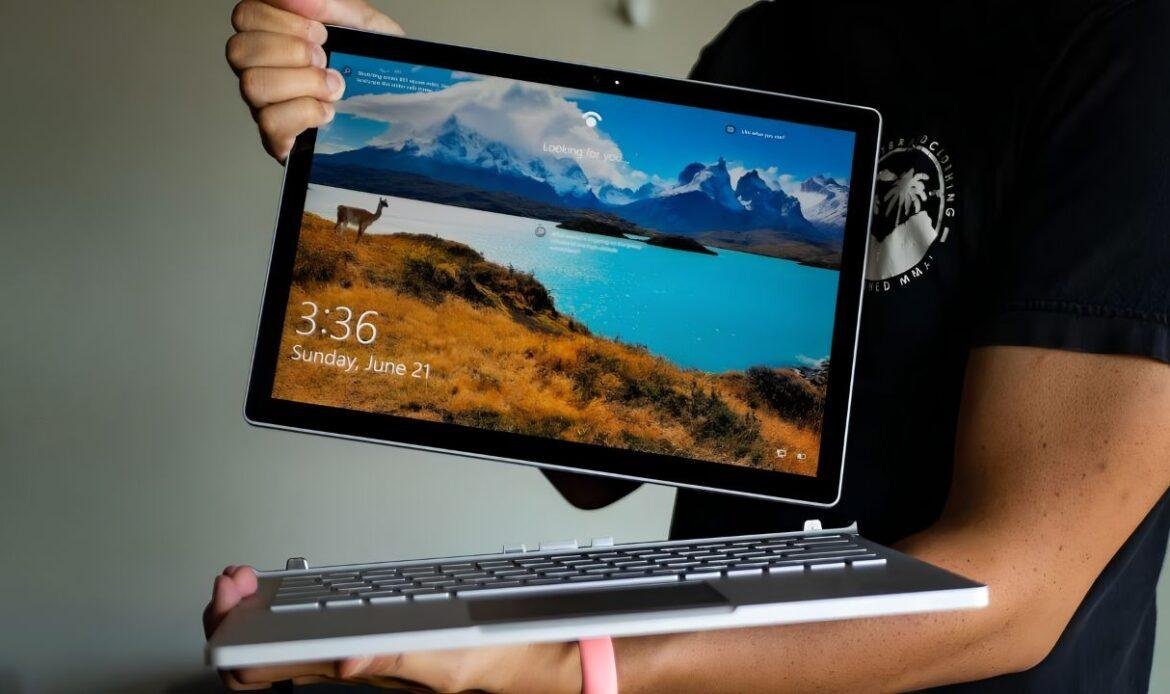
Surface Pro Keyboard Not Working? Here’s How to Fix It
If you’ve ever sat down to type an email and your Surface keyboard just won’t respond, you know how frustrating it can be. One minute everything is fine, and the next your keys stop registering, or the touchpad freezes along with them. The good news is that most of these problems have simple explanations, and you can often sort them out yourself before booking a Microsoft Surface repair. In this guide, we’ll walk through the common causes behind a Surface keyboard that stops working, the fixes you can try at home, and the signs that tell you it’s time to bring in a professional.
Why Is My Surface Keyboard Not Working?
Before jumping into fixes, it helps to understand what’s actually going wrong. Surface keyboards, also called Type Covers, connect to the tablet through small magnetic pins on the bottom edge. When those pins get dirty, misaligned, or damaged, the keyboard can’t talk to the device properly. There are a few common reasons this happens:
- Loose or dirty connection pins: Dust, crumbs, or lint can build up on the magnetic connector over time and block the signal between the keyboard and the tablet.
- Outdated software or drivers: Windows updates sometimes change how the system reads input devices, which can leave your keyboard driver out of sync.
- Accessibility settings: Features like Sticky Keys or Filter Keys can change how your keyboard behaves without you realizing it’s turned on.
- Physical damage: Cracked keys, bent pins, or a torn hinge can stop the keyboard from working no matter how many times you restart your device.
Knowing which of these applies to your situation makes it much easier to pick the right fix instead of guessing.
Quick Fixes You Can Try at Home
Most keyboard issues aren’t as serious as they seem, and a few simple steps often solve the problem in minutes. Here’s what to try, in order:
- Detach and reattach the Type Cover: Unclip the keyboard, wipe the connector pins gently with a dry, lint-free cloth, and snap it back into place. Make sure the magnets line up flush against the tablet.
- Restart your Surface completely: A simple reboot won’t always work here. Go to Settings, choose Power, then Restart, or hold the power button for about 20 seconds to force a full shutdown before turning it back on.
- Check for updates: Open the Surface app or Windows Update and install anything pending. Outdated firmware is one of the most common causes of a keyboard suddenly acting up.
- Test the connectivity: Press Caps Lock or Fn and watch for the small LED light near the key. If it lights up, the connection between the keyboard and tablet is working, which usually points to a software issue rather than hardware.
- Review accessibility settings: Head to Settings, then Accessibility, then Keyboard, and turn off Sticky Keys or Filter Keys if they’re enabled.
If none of these steps bring your keyboard back to life, the issue is likely something the software can’t fix on its own.
Software Problems vs. Hardware Problems
One of the most useful things you can do is figure out whether you’re dealing with a software glitch or an actual hardware fault. Restart your Surface and enter the UEFI settings by holding the volume-up button while powering on. If your keys and touchpad work fine in UEFI but not once Windows loads, the problem is almost always software related, and a driver reinstall or system reset should help. If the keyboard doesn’t respond even in UEFI, you’re looking at a hardware issue, which usually means loose pins, internal damage, or a worn-out connector that needs professional attention.
This distinction matters because it saves you from repeatedly reinstalling Windows when the real problem is a cracked key or a broken cable. It also helps you avoid unnecessary hardware repairs when a simple driver update would have done the trick. Keep in mind that a failing battery can produce similar confusion, since a device that’s losing power sometimes causes input lag or random disconnects that look like a keyboard fault, so it’s worth ruling out a battery replacement if your Surface also struggles to hold a charge.
When It’s a Surface Pro Type Cover Problem
Sometimes the keyboard itself is the source of the trouble, not the tablet. A worn-out Type Cover can develop cracked hinges, unresponsive keys, or a fabric surface that no longer sits flush against the connector. If you’ve noticed certain keys sticking, letters appearing twice, or random characters showing up while you type, this often points to a deeper issue with the keyboard’s internal wiring rather than a simple software bug. We’ve covered this specific problem in more detail in our guide on keyboard typing wrong characters causes and fixes, which is worth a look if your keys are misbehaving instead of staying silent.
A genuine surface pro type cover repair is usually the right call when the keyboard has visible wear, a damaged connector, or keys that only work when you press them at an odd angle. Trying to force a damaged cover to work longer than it should often makes the underlying damage worse.
Other Issues That Can Look Like a Keyboard Problem
Not every “keyboard not working” complaint is actually about the keyboard. Sometimes a different hardware issue creates symptoms that seem similar at first glance. For example, if your Surface screen has visible lines, flickering, or dead zones, typing might look broken even though the keyboard itself is fine, in which case a screen replacement may be the actual fix you need.
A draining or swollen battery can also cause strange behavior across the whole device, including input lag or a keyboard that seems to randomly disconnect. If your Surface struggles to hold a charge or shuts down unexpectedly while you’re typing, it’s worth having the battery checked before you assume the keyboard is the problem.
Liquid exposure is another common hidden cause. Even a small spill near the keyboard connector can lead to corrosion that shows up weeks later as an unresponsive key or two. If you recall a spill or notice sticky residue near the ports, don’t assume the keyboard itself is at fault until that’s been ruled out.
Getting a Professional Repair
If you’ve tried the steps above and your keyboard still won’t respond, it’s time to bring in a technician rather than keep guessing. A trained repair shop can open the Type Cover, inspect the connector pins and internal ribbon cable, and replace only the parts that are actually damaged. This is far more reliable than buying a brand-new cover, especially if the rest of the keyboard is in good shape. A technician can also catch hidden corrosion from an old spill during that inspection, which matters because water damage can quietly wreck a connector long after the liquid itself has dried.
Surface laptop keyboard repair and surface keyboard repair both follow a similar process: diagnosis first, then a targeted fix rather than a full replacement whenever possible. This keeps costs down and gets your device back to normal faster than starting from scratch. A good technician will also check for related issues, like screen damage or battery wear, since these problems often show up together after a drop or spill.
Conclusion
A Surface keyboard that stops responding is annoying, but it’s rarely the end of the road for your device. Start with the basics: clean the connector, restart the tablet, and check for updates. If the keyboard still won’t cooperate, use the UEFI test to figure out whether you’re dealing with software or hardware, and go from there. When the issue turns out to be physical damage, a proper repair is almost always more practical than replacing the whole device. If you’re in Vancouver and need a hand figuring out what’s wrong, the team at iFix Technology can take a look and get your Surface typing normally again.
Frequently Asked Questions
Q1. Why is my Surface Pro keyboard suddenly not working?
Appears in 2 of 3 competitor FAQs and mirrors your exact title intent. Skipping it would be an obvious gap.
Q2. How do I tell if it’s a hardware problem or a software problem?
Only Asurion has this, but it’s the single most useful distinction in this whole topic, and your blog already sets up the UEFI test, so the FAQ can reinforce it in one tight answer instead of repeating the full walkthrough.
Q3. Can I still use my Surface without a working keyboard?
Shows up in 2 of 3 sources. High practical value (on-screen keyboard, external keyboard as a bridge) and it’s a real “what do I do right now” question, not just an SEO filler.
Q4. Do Surface Type Covers wear out over time, or is something else broken?
Only Asurion asks for it, but it lets you naturally work in “surface pro type cover repair” and ties back to the wear-and-tear section of your blog without duplicating it word for word.
Q5. Is it better to repair a damaged Type Cover or replace it?
This works as a natural bridge to the professional repair section and lets you use terms like “surface keyboard repair” and “surface laptop keyboard repair” naturally without forcing them into the body copy.