
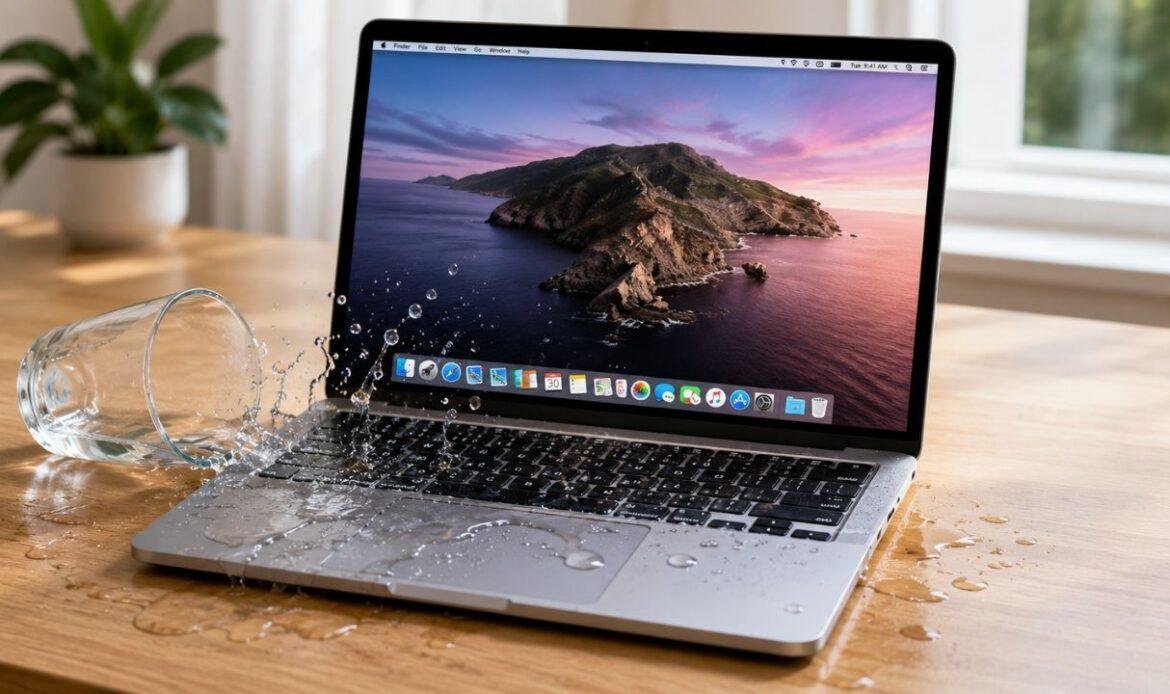
Spilled Water on Your MacBook? Here’s What to Do First
A glass tips over, and in one second your keyboard is soaked. Your first instinct is to grab a towel, wipe the top, and check if the screen still turns on. That instinct is the problem. If you have spilled water on your MacBook, the next few minutes matter more than anything you do later, and the right move is almost always to stop using it rather than test it. Liquid does not need to reach every part of the machine to cause trouble. It only needs to sit between two metal points while power is running through them. This guide walks through what to do if you spill water on your MacBook, what to avoid, and when a spill needs professional water damage repair instead of a home fix.
The First Five Minutes
Speed matters more than technique here. You are not trying to fix anything yet. You are trying to cut power and stop liquid from spreading.
- Unplug the charger: Pull it from the wall first, not from the laptop, especially if the spill reached the outlet or the cable.
- Hold the power button for about ten seconds: Do not shut down through the Apple menu. That takes too long, and every extra second of power raises the risk of a short circuit.
- Unplug everything else: Mice, drives, dongles, headphones, monitors. Any connected accessory gives liquid another path to travel.
- Wipe the outside gently: Use a paper towel or microfiber cloth on the keyboard, trackpad, and ports. Dab, do not rub, and do not push liquid deeper into the gaps.
- Set it up like a tent: Open the lid part way and stand the MacBook on its edge on a dry towel so gravity pulls liquid back out through the keyboard. Turning it fully upside down can strain the hinge and let liquid run toward the display.
Once it is powered off and draining, leave it alone. The urge to press the power button “just to check” is the single most common reason a small spill becomes a logic board replacement.
What Not to Do
Plenty of popular advice makes water damage worse. Skip all of the following:
- Rice: It does not pull moisture out of a sealed laptop, and the dust and starch it leaves in ports create their own problems.
- A hair dryer, radiator, or direct sun: Heat warps plastic parts, damages adhesive, and can push moisture further into the machine instead of out of it.
- Charging it to see if it still works: Power plus moisture is exactly the combination that kills components.
- Opening the case yourself: Without the right tools. On modern MacBooks the battery sits directly under the trackpad, and a slipped screwdriver turns a repair into a replacement.
- Assuming a small spill is harmless: A teaspoon of water landing in the wrong spot does more damage than a cup that mostly ran off the side.
How Long Should It Dry?
Give it at least 48 hours, and 72 hours if the spill was heavy or if the liquid was anything other than plain water. Room temperature air and a fan pointed nearby will do more than any heat source. The type of liquid changes the math too. Clean water evaporates and leaves little behind. Coffee, juice, soda, beer, and salt water leave a sticky, conductive residue that keeps causing shorts long after the wet feeling is gone. Sugar and salt do not evaporate. They sit on the board and quietly eat into it, which is why a sugary spill usually needs to be cleaned professionally rather than dried. If your files matter more than the hardware, it is worth reading about data recovery options before anyone powers the machine on again, because the first boot after a spill is when drives are most at risk.
Water in the MacBook Screen
Sometimes the keyboard dries out fine but you notice cloudy patches, dark blotches, or rainbow streaks near the bottom edge of the display. Water in a MacBook screen usually means liquid has crept between the display layers through the hinge gap. Small marks sometimes fade on their own over a few days as the moisture evaporates. Permanent staining, spreading dark spots, or dead pixels mean the layers have separated or the backlight sheet is damaged, and that does not heal with time. Do not press on the marks to spread them out, and do not apply heat to speed things up. If the spots are still there after a week, the display needs to be inspected. In many cases the screen itself can be replaced without touching the rest of the machine, which is a far smaller job than a full MacBook repair involving the logic board.
Why It Can Seem Fine and Fail Later
This is the part most people learn the hard way. A MacBook that dropped water on it can boot up, run normally, and feel completely fine for days or even weeks. Corrosion starts almost immediately, but it works slowly. Water, metal, oxygen, and electricity together create rust on tiny connectors and solder joints. As that spreads, you get symptoms that seem unrelated to the spill: a key that stops responding, a trackpad that clicks on its own, a battery that drains fast, USB ports that stop reading drives, or fans that run constantly. Sluggish performance after a spill is a warning sign rather than a normal aging issue, and it is worth ruling out corrosion before you chase the usual reasons a MacBook runs slow. By the time the failure is obvious, the repair is usually bigger and more expensive than it would have been on day one.
How to Fix a MacBook With Water Damage
Honest answer: at home, you cannot. What you can do is limit the damage and hand over a machine that is still repairable. A proper fix means opening the laptop, disconnecting the battery, inspecting the logic board under magnification, cleaning corrosion with high grade isopropyl alcohol or an ultrasonic bath, and replacing any components that have already been eaten through. Technicians also check the liquid contact indicators, which are small strips inside the machine that turn red when they touch liquid. Those strips are how Apple identifies a spill even when the outside looks spotless.
That last point matters for cost. Apple’s standard one year warranty does not cover liquid damage. AppleCare+ does treat it as accidental damage, but with a service fee attached, and an out of warranty repair is often quoted as a full replacement of the affected assembly. An independent repair shop can sometimes clean and repair the existing board instead, which is usually cheaper, though it depends on how far the corrosion has spread.
Conclusion
A spill is not automatically the end of your MacBook. Most machines that get shut down within seconds, dried patiently for two or three days, and cleaned before corrosion sets in, go on working normally for years. Most machines that get powered back on straight away do not. Cut the power, resist the urge to test it, skip the rice and the hair dryer, and get it looked at before the damage becomes permanent. If you are unsure how bad the spill was or the screen and keyboard are behaving strangely afterward, a diagnostic check from a repair specialist will tell you far more than another attempt at turning it on.
Frequently Asked Questions
1. What should I do immediately after spilling water on my MacBook?
Turn off the MacBook immediately, unplug the charger and all connected accessories, and gently wipe away visible moisture. Avoid pressing keys or turning it back on to test whether it still works.
2. Can a water-damaged MacBook be repaired?
In many cases, yes. A technician can inspect the internal components, clean corrosion, test the logic board, and replace damaged parts. The possibility and cost of repair depend on the type and extent of the liquid damage.
3. How long should I let my MacBook dry after a water spill?
Allow at least 48 hours before considering any attempt to power it on. A larger spill or exposure to liquids other than clean water may require longer drying and professional inspection.
4. Can I use a hair dryer to dry my MacBook?
No. Avoid hair dryers, heaters, radiators, and direct sunlight. Excessive heat can damage internal components, adhesives, and other parts while potentially pushing moisture deeper into the laptop.
5. Can a MacBook work normally after water damage?
Yes, it may appear to work normally after a spill, but hidden moisture and corrosion can cause problems later. Issues such as unresponsive keys, battery problems, unexpected shutdowns, or malfunctioning ports may develop over time.