
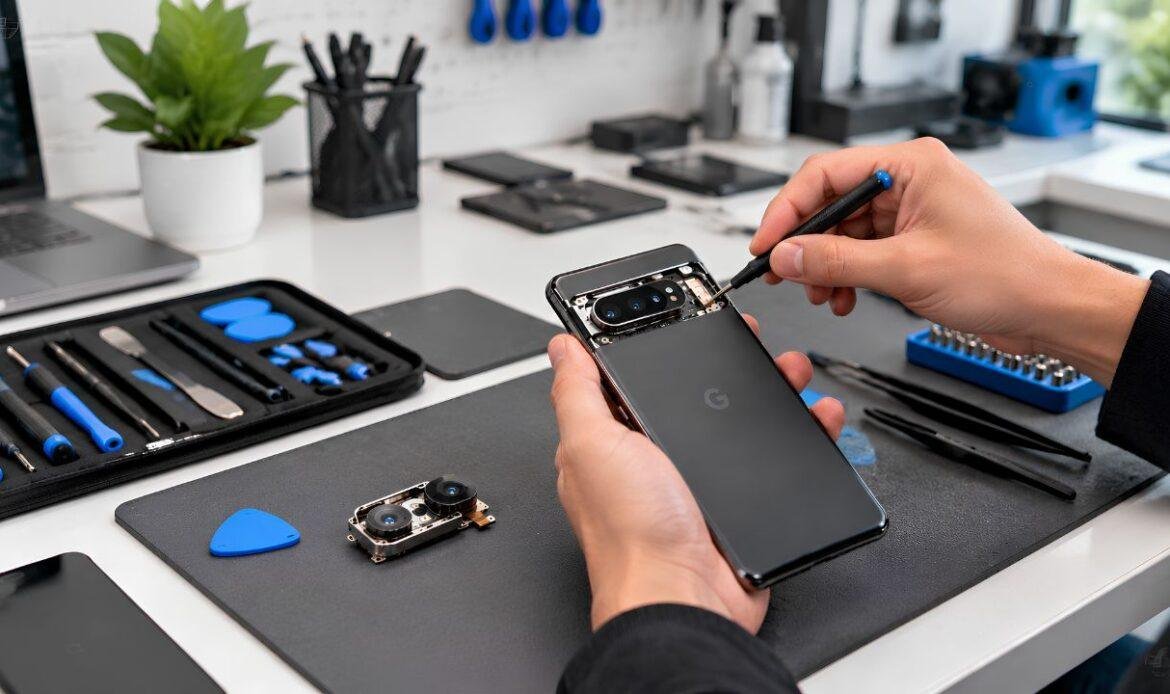
Google Pixel Camera Repair: Common Issues and Fixes
The Google Pixel is built around its camera. From Night Sight to Magic Eraser, the camera is the main reason most people buy a Pixel. But when it stops working properly, the whole phone feels less useful.
Blurry photos, a camera app that crashes on launch, a black screen when you open the camera, or a lens that refuses to switch between front and rear are all issues Pixel owners run into regularly.
Most of these come from software glitches you can fix at home. In other cases, the problem points to hardware damage that needs front and rear camera repair by a trained technician.
This guide covers common causes, step-by-step fixes, and how to tell when professional help is the better option.
Why Your Google Pixel Camera Stops Working
Before jumping to fixes, it helps to understand what actually causes Google Pixel camera problems. The issue usually falls into one of two categories: software or hardware.
Software causes include:
- A full app cache that stops the camera from loading
- An outdated Android version or camera app with known bugs
- Third-party apps blocking camera access in the background
- Low storage space that prevents photos from saving
Hardware causes include:
- A cracked or scratched camera lens
- Water or moisture inside the camera housing
- A damaged autofocus motor that causes constant blur
- Overheating that temporarily shuts the camera down
Knowing which type you are dealing with saves time on fixes that will not help. If you notice other issues alongside camera trouble, checking for common Google Pixel phone problems can help you get the full picture.
The CLEAR Check: A Simple Way to Find the Problem
Instead of trying random fixes, use the CLEAR Check to work through the issue in a logical order. This five-step process helps you figure out whether the fault is software or hardware before you spend money on a repair.
C — Clean the lens. Wipe the camera lens with a soft, lint-free cloth. Remove your phone case and check whether it covers part of the camera glass. Even a thin oil film from your fingers can throw off the autofocus.
L — Launch in Safe Mode. On Pixel 6 and newer, press and hold Power and Volume Up, then tap Power Off and confirm Safe Mode. If the camera works there, a downloaded app is causing the conflict.
E — Erase the cache. Go to Settings, then Apps, then Camera, then Storage and Cache, and hit Clear Cache. This removes temporary files without deleting your photos and is one of the fastest fixes for a crashing camera app.
A — Assess for updates. Open Settings, then System, then System Update. Also check the Play Store for a camera app update. Old software is one of the top reasons for a Google Pixel camera not working after an Android update.
R — Reset as a last resort. If everything above fails, back up your data and do a factory reset through Settings, then System, then Reset Options. If the camera still fails after a full reset, the problem is almost certainly hardware.
How to Fix a Blurry Google Pixel Camera
A Google Pixel camera blurry issue is one of the most common complaints, and the fix is often simpler than you think.
Start with the lens. Use a microfibre cloth to wipe away fingerprints, dust, or smudges. If you use a phone case, take it off and test a few shots without it. Some cases sit too close to the camera bump and block part of the lens.
Next, tap the area on screen where you want the camera to focus. The Pixel uses tap-to-focus, and sometimes it locks onto the wrong spot, especially in low light or when there are multiple subjects in the frame. Move back slightly if you are too close to the subject, since Pixel cameras can struggle with very close macro shots.
If blur continues after cleaning and adjusting focus, restart the camera app and your phone. Clear the cache using the steps in the CLEAR Check above. Persistent blur that shows up in every photo, across both front and rear cameras, usually points to a faulty autofocus motor. That is a hardware issue that requires professional Google Pixel repair from a qualified technician who can test and replace the camera module safely.
What to Do When Your Google Pixel Camera Is Not Working
When your Google Pixel camera is not working at all, it typically means the app crashes on launch, shows a black screen, or returns an error message. Here is how to work through it.
Force close the camera app by swiping it away from your recent apps. Reopen it and test. If that does not help, go to Settings, then Apps, then Camera, tap Force Stop, and then Clear Cache.
Check your storage. A Pixel with less than 1 GB of free space may not run the camera at all. Delete old files or move photos to Google Photos to free up room.
If the camera opens in Safe Mode but crashes in normal mode, a recently installed app is blocking it. Uninstall apps one at a time, starting with the newest, and test the camera after each removal.
When none of these steps bring the camera back, the sensor or connector cable may have failed. Before deciding on next steps, it helps to understand what Pixel repairs typically cost so you can weigh repair against replacement.
When to Consider Professional Camera Repair
Not every camera problem has a software fix. If your Pixel camera still shows a black screen after a factory reset, or if every photo comes out blurry even with a perfectly clean lens, the hardware is likely at fault.
Common hardware failures include a cracked camera lens, a damaged optical image stabilisation motor, and a faulty image sensor. These parts sit deep inside the phone and need proper tools to replace. Opening a Pixel yourself risks tearing ribbon cables or puncturing the battery, which turns a simple camera fix into a much bigger problem.
A professional diagnostic takes a few minutes and gives you a clear answer on what failed and what it costs to fix.
How to Keep Your Pixel Camera Working Well
Prevention is easier than repair. A few small habits go a long way in keeping your Pixel camera working well.
Use a phone case with a raised lip around the camera bump. This keeps the lens off flat surfaces and reduces the chance of scratches. Keep your software current, since Google releases regular updates that patch known camera bugs.
Avoid using your Pixel in extreme heat for long stretches. Direct sunlight can degrade sensor performance over time. If the phone feels hot, let it cool before opening the camera.
Restart your phone once a week. This clears background processes and frees up memory, which helps the camera app run without issues.
Conclusion
Most Google Pixel camera problems come down to either a software glitch or a hardware fault. Simple steps like cleaning the lens, clearing the app cache, and updating your software fix the majority of issues. The CLEAR Check gives you a fast, structured way to work through the problem without wasting time on guesswork. For deeper issues like a damaged sensor or a broken autofocus motor, professional repair is the safest path forward. If your Pixel camera is giving you trouble and home fixes have not helped, the team at iFix Technology can run a full diagnostic and get your camera back to working order.
Frequently Asked Questions
1. Why does my Google Pixel camera keep losing focus?
A Pixel camera may struggle to focus because of a dirty lens, an obstructed camera area, software issues, or a problem with the autofocus system. Clean the lens, remove the case, restart the phone, and test the camera again. If the focus problem continues, the camera hardware may need inspection.
2. Why is my Google Pixel camera shaking or vibrating?
A slight movement or sound from the camera can occur because some Pixel models use moving components for focusing and image stabilization. However, unusual shaking, constant vibration, or photos that remain blurry may indicate a camera hardware problem that requires further inspection.
3. Can a cracked Pixel camera lens cause blurry photos?
Yes. Cracks, scratches, dust, or damage to the glass covering the camera can affect image clarity and cause glare, haze, or blurry photos. Cleaning the lens can help with surface dirt, but damaged lens glass may need to be replaced if it continues affecting image quality.
4. Can water damage affect the Google Pixel camera?
Yes, water or moisture can affect the Google Pixel camera and cause blurry images, focus problems, a foggy lens, or camera failure. If your Pixel has been exposed to liquid, avoid using heat to dry it and have the device inspected to check for internal moisture or component damage.
5. How long does Google Pixel camera repair usually take?
Google Pixel camera repair time depends on the specific problem, the damaged component, and whether a replacement part is available. A technician can inspect the phone first and provide a more accurate repair timeframe after identifying the issue.