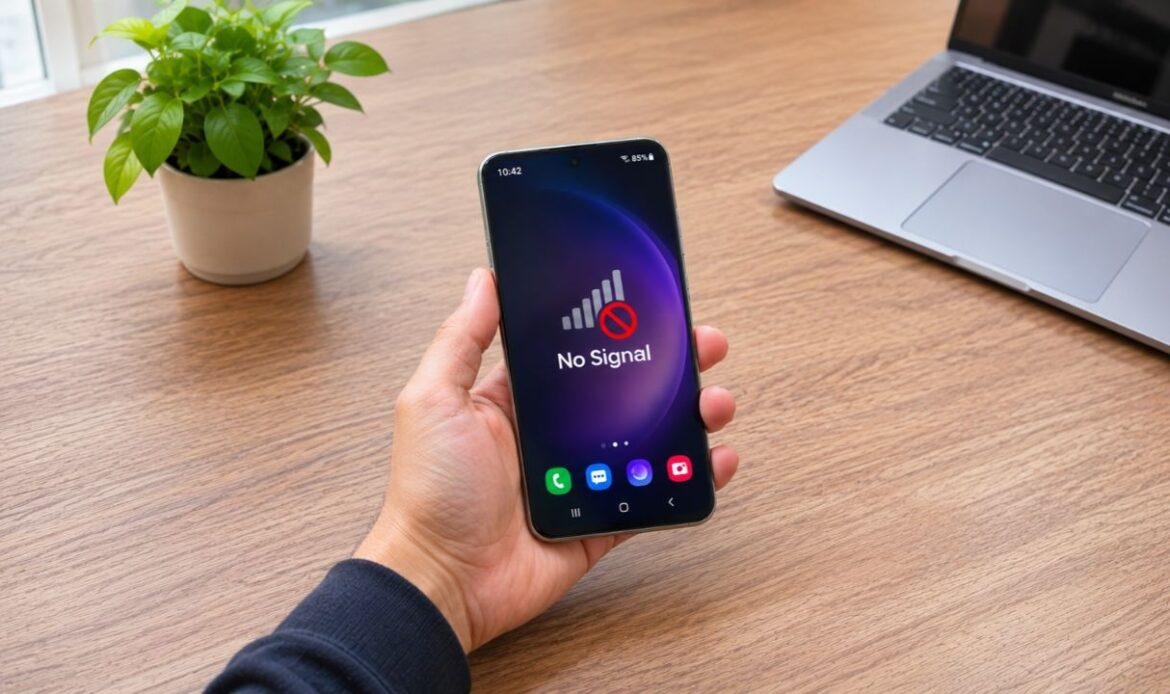
Your Samsung phone suddenly loses signal in the middle of an important call. Or perhaps you notice “No Service” or “Emergency calls only” on the screen, even though you’re in an area where your phone usually works fine. These interruptions can be frustrating, especially when you depend on your phone for calls, messages, navigation, and mobile internet.
There are several possible reasons for Samsung phone signal loss, from weak network coverage and incorrect settings to SIM card faults and internal hardware damage. Some issues can be fixed with a quick restart or a simple settings change, while others require further investigation.
Whether you’re using a Samsung Galaxy S, A, Z Flip, or Z Fold model, understanding why your phone keeps losing signal can help you find the right solution. In this guide, we’ll explain the 10 most common causes, how to identify them, and when professional Samsung repair may be necessary.
1. Weak Network Coverage in Your Area
One of the most common reasons your Samsung phone loses signal is poor cellular network coverage. Mobile phones connect to nearby cell towers, and the strength of that connection depends on your location and the surrounding environment.
Concrete buildings, basements, underground parking garages, elevators, and remote areas can weaken or block cellular signals. You might notice that your phone works normally outdoors but loses reception as soon as you enter a building.
How to Fix Weak Network Coverage
- Change your location: Move closer to a window or step outside to check whether the signal improves.
- Check your carrier’s coverage: Review your provider’s coverage map to see whether your area has limited service.
- Compare another phone: Ask someone using the same network whether they’re experiencing similar problems.
- Enable Wi-Fi Calling: If your Samsung and carrier support it, use Wi-Fi Calling to make calls in locations with poor cellular reception.
If your phone only loses signal in specific locations, the problem is more likely related to network coverage than a fault in the device.
2. Mobile Carrier Outages or Network Congestion
Sometimes, the problem isn’t with your Samsung phone at all. Your mobile carrier may be experiencing technical difficulties, scheduled maintenance, or temporary network congestion.
Network congestion occurs when too many devices connect to the same cellular tower. This can happen during large public events, concerts, sporting events, or busy periods.
You might still see signal bars on your screen, but calls fail to connect or mobile internet becomes unusually slow.
How to Check for Carrier Problems
- Visit your mobile carrier’s official website or app to look for outage notices.
- Ask people nearby using the same carrier whether their service is affected.
- Move to another location and test your connection.
- Contact your network provider if the problem continues without a reported outage.
In Vancouver, providers such as Rogers, Bell, Telus, and Freedom Mobile may occasionally experience service interruptions.
If several people on the same carrier are having connection problems, changing your Samsung settings probably won’t help until the network issue is resolved.
3. Incorrect Mobile Network Settings
Your Samsung phone automatically connects to available mobile networks, but certain settings can interfere with this process.
For example, your phone may repeatedly switch between 5G and 4G in areas with inconsistent coverage. Manual network selection, disabled SIM settings, or accidental activation of Airplane mode can also prevent a stable connection.
How to Fix Samsung Network Settings
Step 1: Swipe down to open Quick Settings and check whether Airplane mode is enabled. If it is, turn it off.
Step 2: If Airplane mode is already off, enable it for about 15 seconds, then disable it to refresh the cellular connection.
Step 3: Go to Settings > Connections > Mobile networks.
Step 4: If your phone provides a Network mode option, temporarily select a supported 4G/LTE mode to test whether reception becomes more stable.
Step 5: Under Network operators, enable automatic network selection if the option is available.
If you use two SIM cards, open Settings > Connections > SIM manager and verify that the correct mobile line is active.
4. Damaged or Improperly Inserted SIM Card
Your SIM card connects your Samsung phone to your mobile carrier. If it becomes damaged, worn, or incorrectly positioned, the phone may struggle to recognize it.
A faulty SIM can cause network interruptions, failed calls, or messages such as “No SIM card detected.”
SIM-related problems sometimes begin after dropping the phone, changing SIM cards, or transferring service to a new device.
How to Check Your SIM Card
- Turn off your Samsung phone.
- Carefully remove the SIM tray using the appropriate eject tool.
- Check the SIM card for dirt, scratches, or visible damage.
- Gently wipe the contacts with a clean, dry, lint-free cloth if necessary.
- Reinsert the card correctly and restart your device.
If your Samsung supports eSIM, open Settings > Connections > SIM manager and confirm that your mobile line is enabled.
You can also test your physical SIM in another compatible phone. If it doesn’t work there either, contact your carrier about replacing it.
However, if your Samsung repeatedly fails to recognize multiple working SIM cards, the internal SIM reader may be damaged. A technician offering phone repair services can inspect the reader and its connections.
5. Software Bugs or Outdated System Updates
Software-related problems can also interrupt your Samsung’s connection to a cellular network.
Temporary system errors, incomplete updates, or compatibility issues may prevent the phone from registering correctly with your carrier.
You might notice these Samsung network issues after installing an update or when the phone hasn’t been restarted for an extended period.
How to Fix Software-Related Signal Problems
Restart your Samsung: A normal restart can resolve temporary network errors.
Check for updates: Connect to Wi-Fi and open Settings > Software update > Download and install.
Test in Safe Mode: If the problem began after installing an app, Safe Mode can help determine whether downloaded software is contributing to the issue.
Run Samsung diagnostics: Open the Samsung Members app, navigate to Support, and check the available phone diagnostics.
If you’re having trouble with mobile internet rather than actual signal reception, also check whether a VPN or another network-related app is affecting your connection.
Avoid performing a factory reset before backing up your files. A factory reset removes personal data and may not resolve a carrier or hardware problem.
For persistent software errors, technicians experienced in software issues and data recovery can assess the problem and discuss possible recovery or repair options.
6. Incorrect APN or Carrier Configuration
Does your Samsung show strong signal bars but fail to load websites or use mobile data?
The problem may involve your Access Point Name (APN) settings rather than cellular reception.
An APN contains the information your phone uses to connect to your carrier’s mobile data network. Incorrect settings may interfere with internet access, multimedia messaging, or certain carrier services.
This can happen after changing SIM cards, switching network providers, or modifying mobile data settings.
How to Check APN Settings
- Open Settings > Connections > Mobile networks.
- Select Access Point Names.
- Open the menu and choose Reset to default, if available.
- Restart your phone and test mobile data again.
- Contact your carrier if you need the correct APN configuration.
Also verify that your mobile plan is active and that your SIM or eSIM has been fully activated.
Remember: APN problems generally affect mobile data rather than the strength of your cellular signal. If your Samsung displays “No service,” investigate coverage, SIM, and network registration problems first.
7. Phone Case or Metal Accessories Blocking Reception
Certain phone accessories can reduce signal reception, particularly in areas where cellular coverage is already weak.
Samsung phones use antennas positioned around the device to communicate with nearby cellular towers. Metal plates, magnetic accessories, or cases containing substantial metal components can sometimes interfere with these antennas.
For example, you may notice weaker reception after attaching a metal plate for a car phone mount.
How to Identify Accessory Interference
- Remove the phone case and any attached magnetic accessories.
- Check whether the signal improves in the same location.
- Make a test call to compare connection stability.
- Avoid positioning metal attachments over antenna areas.
Ordinary plastic and silicone cases generally have little effect on reception.
If your signal improves noticeably when the case or accessory is removed, consider replacing it with one designed specifically for your Samsung model.
8. Damaged Antenna or Internal Connections
If your Samsung started losing signal after being dropped, the issue may involve damaged antenna components or loose internal connections.
A phone’s antenna system allows it to transmit and receive cellular signals. Physical impact can damage antenna connections, surrounding components, or parts of the frame.
Unlike location-based coverage problems, hardware-related signal loss may happen almost everywhere you use the device.
Signs of Possible Antenna Damage
- Your phone receives significantly weaker signals than another device using the same carrier.
- The problem started immediately after a hard drop.
- Replacing the SIM card doesn’t improve reception.
- Signal bars disappear frequently, even in areas with reliable coverage.
- Network problems continue after checking the phone’s settings.
Inspect the phone for visible dents, cracks, or gaps around the frame.
However, don’t attempt to open the device or press on damaged areas to restore reception. Samsung phones contain delicate internal connections, and improper handling can cause additional damage.
If the drop also cracked the rear panel, a technician can inspect the device and determine whether back glass replacement is needed alongside any internal repairs.
9. Water Damage or Battery-Related Issues
Liquid exposure and serious battery faults can affect the overall operation of your Samsung phone, including its ability to maintain a cellular connection.
Water Damage
Many Samsung Galaxy models offer water resistance, but this protection isn’t permanent. Water-resistant seals can deteriorate over time or become compromised after physical damage.
If moisture reaches internal components, corrosion can damage connections involved in cellular communication.
Sometimes, network problems appear immediately after liquid exposure. In other cases, the phone continues working for several days before symptoms develop.
What to do if your Samsung gets wet:
- Turn off the phone if you suspect liquid entered it.
- Avoid charging or using the device if internal moisture may be present.
- Remove the case and gently dry the exterior.
- Don’t use a hair dryer or place the phone in rice.
- Arrange an inspection if the phone shows signs of internal moisture or malfunction.
A professional water damage repair assessment can help determine whether internal corrosion or component damage is affecting connectivity.
Battery-Related Problems
A severely failing battery or unstable power supply may cause unexpected shutdowns or restarts that interrupt cellular connections.
However, weak reception alone isn’t strong evidence of battery failure.
If the phone also overheats, shuts down unexpectedly, or shows a lifting screen or back panel, a battery-related issue may be present.
A swollen battery is a safety concern. Stop using and charging the device, and don’t attempt to open it.
A technician can inspect the battery and determine whether safe battery replacement is required.
10. Motherboard or Cellular Modem Problems
If your Samsung phone cannot connect to any network after you’ve checked its SIM, carrier, and software settings, an internal hardware problem may be responsible.
Your Samsung’s cellular modem manages communication with mobile networks. Damage to the modem, associated circuits, or motherboard connections can prevent proper network registration.
These faults may develop after a hard impact, liquid exposure, or an internal component failure.
Common Signs of a Possible Motherboard Fault
- Your Samsung displays “Not registered on network” with different working SIM cards.
- The phone cannot detect available mobile networks.
- The IMEI number is missing or invalid.
- The baseband version appears to be unknown.
- Connectivity problems continue after appropriate software and carrier checks.
You can check your device’s IMEI by dialling *#06#.
These symptoms don’t always mean the motherboard is damaged. Carrier restrictions and software errors can sometimes produce similar behaviour.
However, if the phone fails to connect to multiple confirmed-working networks, professional diagnostics can help identify the actual fault.
A technician specializing in motherboard repair can inspect the relevant circuits and determine whether repair is possible.
When Should You Get Your Samsung Phone Repaired?
Not every Samsung signal problem requires professional repair. If the issue involves network coverage, incorrect settings, or an inactive SIM, you may be able to resolve it yourself.
However, continuing to change settings won’t help if the problem is caused by damaged internal components.
Consider professional inspection when:
- Your Samsung has no signal in multiple locations despite good carrier coverage.
- The problem continues with different working SIM cards.
- Network issues started after a drop or liquid exposure.
- Your phone shows signs of physical or battery damage.
- The IMEI or baseband information appears abnormal.
Before taking your phone for repair, back up important photos, contacts, and other files whenever it’s safe and possible to do so.
If you’re deciding whether to repair or replace the device, read our Samsung phone repair guide for additional information about common repair considerations.
Conclusion
Samsung phone signal loss can happen because of weak network coverage, carrier interruptions, incorrect settings, SIM card faults, or internal hardware damage. The best approach is to identify the symptoms before attempting repairs.
Start with simple checks such as restarting your phone, verifying your carrier’s service, reviewing mobile network settings, and testing the SIM card. If the connection remains unreliable, further diagnostics may be necessary.
When your Samsung continues to lose signal despite troubleshooting, or the issue began after physical damage, iFix Technology in Vancouver can help inspect the device and identify suitable repair options.
Frequently Asked Questions
1. Why does my Samsung phone keep losing signal randomly?
Random signal loss can occur because of weak coverage, network switching, carrier interruptions, SIM card faults, or temporary software issues. Check whether the problem happens in specific locations or across different areas to help identify the cause.
2. Why does my Samsung say “No service” when I have a SIM card?
Your phone may show “No service” if the SIM isn’t activated, the carrier network is unavailable, the SIM is damaged, or the phone cannot register with the network. Try restarting the phone and checking your carrier account before investigating hardware faults.
3. Can a Samsung software update cause network problems?
Yes. Some updates may introduce temporary compatibility or network registration issues, although updates can also fix existing connectivity problems. Check for newer software updates and review your network settings if the problem began after an update.
4. How do I reset my Samsung network without deleting my data?
Open Settings > General management > Reset > Reset mobile network settings on supported models. This resets mobile network configurations without deleting personal photos, apps, or other files. The exact menu may differ on older Samsung devices.
5. How do I know if my Samsung signal problem is hardware-related?
A hardware problem becomes more likely when the phone loses service across multiple locations, fails with different working SIM cards, or develops connectivity issues after physical damage. Professional diagnostics can help confirm the cause.